Category: Guide

This category is strictly form product guide, it should not be deleted

  • MyCover App for Health, Gadget, Auto & Travel Insurance

    MyCover App for Health, Gadget, Auto & Travel Insurance

    You probably use your phone to manage most parts of your life. You send money, order food, order rides, shop online, and pay bills from one device.

    Insurance has not always worked that way.

    For many people, buying insurance in Nigeria still means filling out forms, calling agents or customer support, or managing different policies across different providers. If you have health insurance, auto insurance, gadget insurance and travel insurance, they often live in separate places. This makes simple things harder than they should be. Renewals get missed, policy documents get lost, and claims take longer because information is scattered, among other serious issues. 

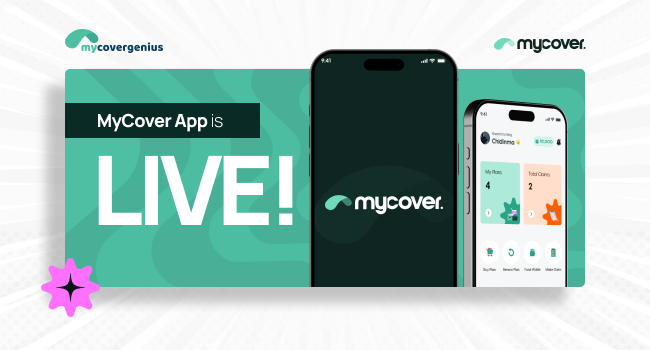
    MyCover App was built to change that. Instead of juggling multiple processes, you can now buy insurance online, manage your plans, settle claims and more, all directly from your phone. The best part is that it takes just a few minutes. 

    Meet the MyCover App: The all-in-one insurance App

    MyCover App is a mobile platform that lets you get insured from your phone anywhere you are in Nigeria, manage your policies, and file claims without paperwork.

    You can access four essential protections in one place: health, auto, gadget, and travel cover. This means you no longer need different platforms for different policies. Everything stays organised in one dashboard.
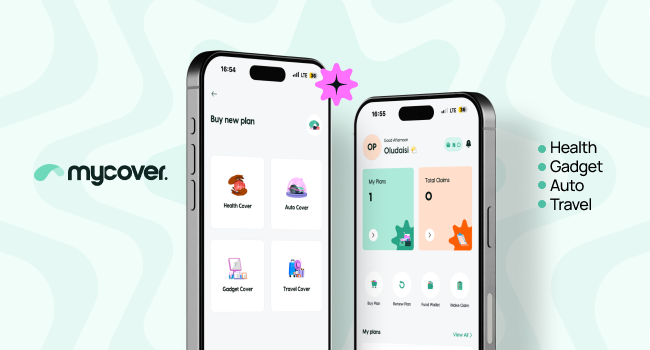
    MyCover App interface that shows that you can buy either the health, gadget, auto or travel insurance.

    With the app, you can:

    • Buy insurance in minutes
    • Pay for plans directly
    • Renew existing coverage
    • Fund your wallet for future payments
    • View your policy benefits anytime
    • File and track claims digitally

    If you use insurance through work, the same app allows you to manage your benefits without needing multiple channels.

    Why digital insurance matters for Nigerians

    Think about the last time you tried to do anything insurance-related the old way. You probably had to visit an office, wait for approvals, call customer support and follow up multiple times before anything happened. That experience has kept millions of Nigerians away from insurance altogether.

    Digital insurance changes that. Here is what it actually means for you:

    • Convenience: You can get covered from wherever you are, at any time. No office visits or queues. Just your phone.
    • Transparency: You can see exactly what your plan covers, what your benefits are, and what you are paying for. 
    • Faster claims: You no longer have to wait weeks to get paid after an incident. With the MyCover App, you can file your claim directly from your phone and track it in real time.
    • Accessibility: Whether you are in Lagos Island or in Kano, as long as you have a smartphone, you can get insured. Geography no longer limits your access to coverage.

    Industry operators have long identified low public awareness, limited access and mistrust as the key barriers to insurance uptake in Nigeria. The MyCover App directly addresses all three.

    What can you do on the MyCover App?

    The MyCover App is built to handle everything you need in one place. The table below provides a clear breakdown of the available insurance types and what you can do directly in the app.

    Type of InsuranceBuy or Activate PlansManage Your PolicyClaims & Health SupportHelp & Information
    Health InsuranceBuy and activate health plans (FlexiCare, ZenCare, PrimeCare) directly in the app.Add or remove dependants, renew plans, and view specific plan benefits.File and track claims, talk to a doctor anytime via telemedicine.Access FAQs or contact support if you need help with hospital access or coverage.
    Auto InsurancePurchase or renew Auto insurance (Comprehensive, Third Party, or Mini Comprehensive).View policy details and manage vehicle coverage in your personal dashboard.Submit and track an accident or damage claim.Call or chat with customer support directly from the app for policy queries.
    Gadget InsuranceInsure your phone, laptop, camera and other devices against theft and accidental damage.View coverage details, manage renewals, and check asset limits.Submit claims if your gadget is damaged or stolenGet quick answers through FAQs or in-app support.
    Travel InsuranceBuy Travel insurance to cover your trip and luggageView plan details and coverage benefits anytime.File claims related to travel emergencies, disruptions, or medical evacuations.Reach support through call, WhatsApp, or in-app chat during travels.
    App FeaturesInstant Purchase: Buy plans instantly and fund your wallet for quick payments.Centralised Dashboard: Manage all policies, dependants, and assets in one place.Digital Claims: Submit claims digitally and track approval status in real-time.Direct Support: Contact at 09070008899, via WhatsApp, or through instant app chat.

    MyCover App is designed to put you in control of all your insurance, without any back-and-forth.

    Who can use the MyCover App

    The MyCover App is designed for people who want to manage all their insurance policies directly from their phone.

    If you are an individual, you can use the app to purchase coverage of any type digitally, protect what matters to you, and manage your coverage without stress. From health to travel protection, everything lives in one insurance app.

    The app also works for you if you receive insurance through your workplace. If your employer provides coverage, you can use the MyCover App to view your benefits, manage dependants, and access your policy details anytime.

    You can buy insurance yourself or access coverage through your workplace. In both cases, the MyCover App gives you one place to manage your plans, file claims, and get support when you need it.

    How to get started on the MyCover App

    Getting on the app takes less than five minutes. Here is how:

    Step 1

    • Download the app: Get the MyCover App from the Google Play Store or the Apple App Store. It is free to download.

    Step 2

    • Create your account: Sign up with your basic details and verify your identity. The process is quick and straightforward.

    Step 3

    • Choose your coverage: Browse through the available plans like health, auto, gadget or travel insurance and pick the one that fits your needs and budget. You can compare benefits before you commit.

    If you are an Android or iPhone user, download the MyCover App here. 

    The future of insurance is fully digital

    Insurance is becoming easier to access in Nigeria because it no longer depends on paperwork, office visits, or long phone calls. You can now get insured directly from your smartphone. 

    The MyCover App is part of this change. Your health, car, gadgets and trips are covered in one app, so you do not need different platforms for different policies. Instead of searching for coverage across multiple providers, you can open just this one insurance app, the MyCover App, and manage everything from a single dashboard.

    This is what a modern insurance mobile app should do, and we are glad to bring it to you. One app with four essential protections giving you full control of your coverage right from your phone.

    Get the MyCover App to activate and manage your health, auto, gadget and travel cover today

    Frequently asked questions

    What types of insurance can I buy on the MyCover App? 

    You can buy health, auto, gadget and travel insurance directly on the MyCover app.

    Can I add my family members to my plan? 

    Yes. You can add dependants like your spouse, children or parents from within the MyCover app, and remove them whenever your situation changes.

    How do I file a claim? 

    Open the MyCover app and go to the claims section. Choose the policy you want to claim under (health, auto, gadget, or travel). Upload the required details or photos, describe what happened, and submit your claim. 

    What if I need to speak with a doctor? 

    The MyCover app has a telemedicine channel where you can have a real conversation with a qualified medical professional. You do not need to visit a hospital for minor concerns.

    How do I reach customer support? 

    You have three options, all within the app: call the support team directly on 09070008899, chat via WhatsApp, or use the instant chat channel. Help is always one tap away.

    Is the MyCover App free to download? 

    Yes. Downloading the MyCover app costs nothing. You only pay when you purchase a plan. Install the app and keep all your policies in one dashboard
  • HMO Costs in Nigeria: Why Affordable Health Insurance Still Feels Out of Reach

    HMO Costs in Nigeria: Why Affordable Health Insurance Still Feels Out of Reach

    Rising HMO costs in Nigeria have become a critical challenge for many families. As economic pressures increase, thousands of Nigerians find themselves priced out of basic medical coverage. The gap between what families can afford and what providers charge has reached crisis levels, forcing parents to make impossible choices between financial security and their children’s healthcare.

    Annual health insurance in Nigeria premium plans now range from ₦500,000 to ₦900,000 for comprehensive family coverage, while quarterly payments can reach up to ₦395,000. For families navigating Nigeria’s economic realities, these figures represent more than healthcare costs; they are significant barriers to essential services.

    Why HMO Costs in Nigeria Remain High

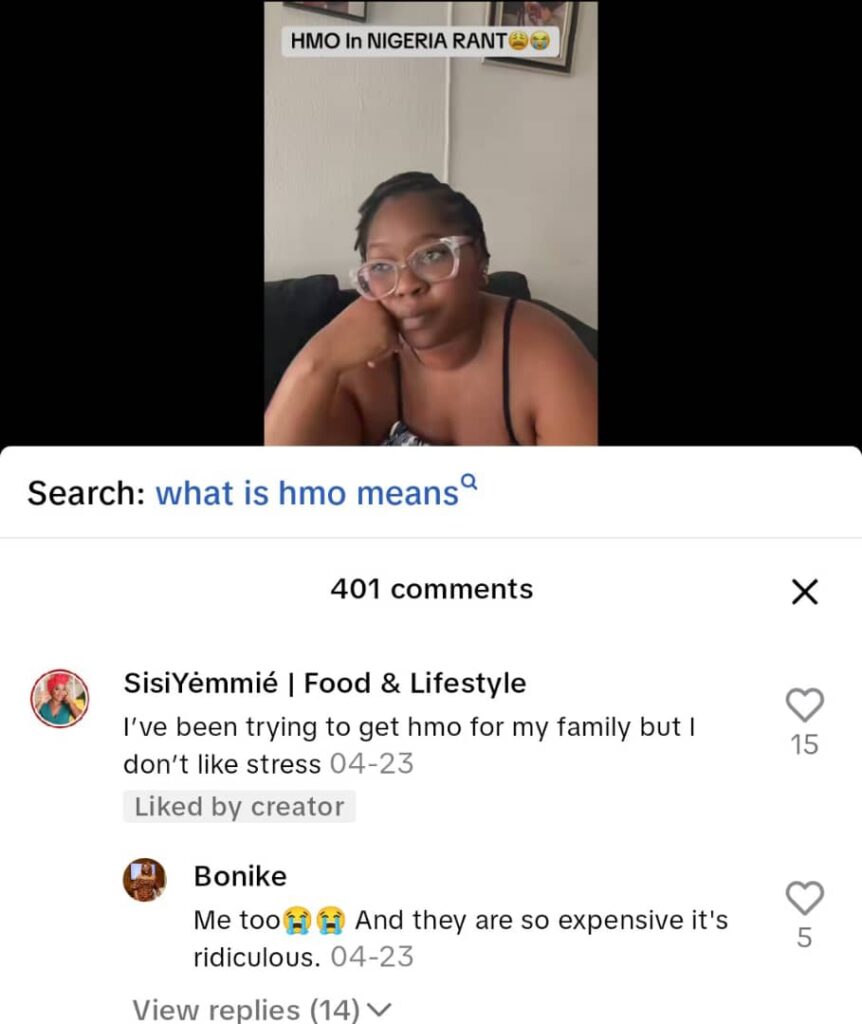
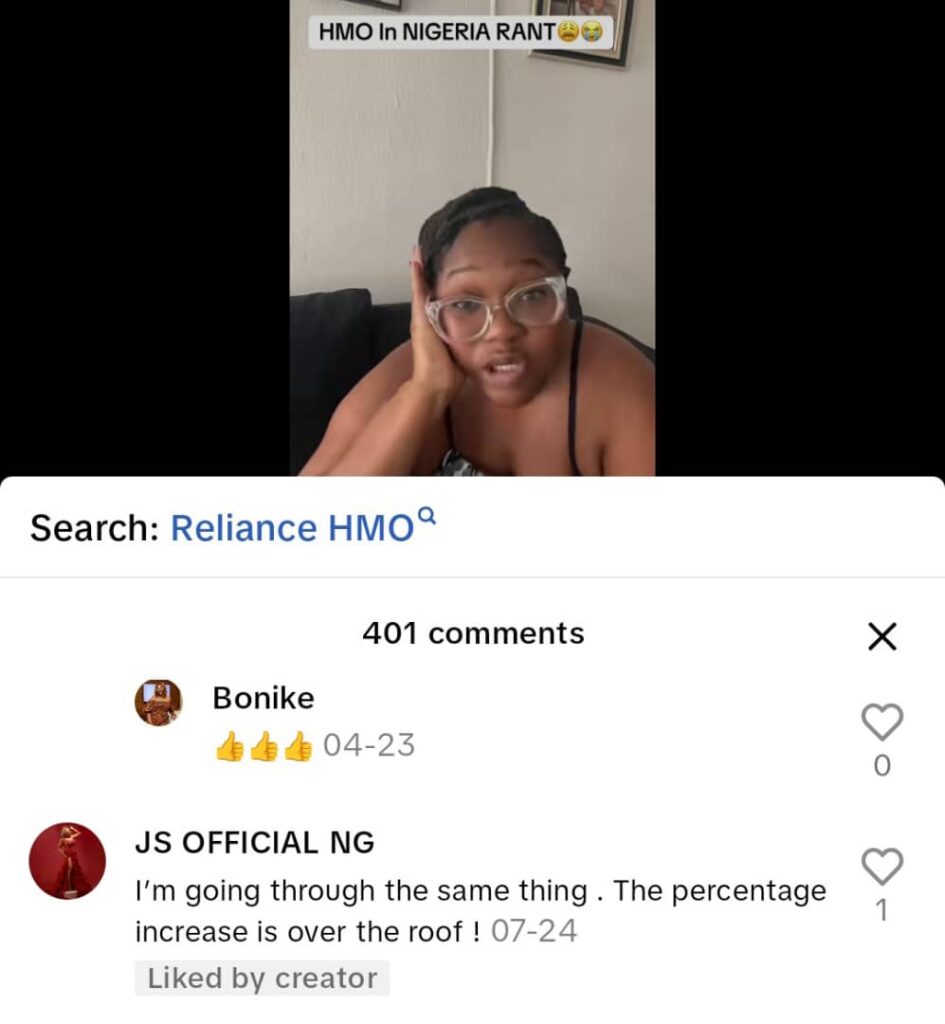
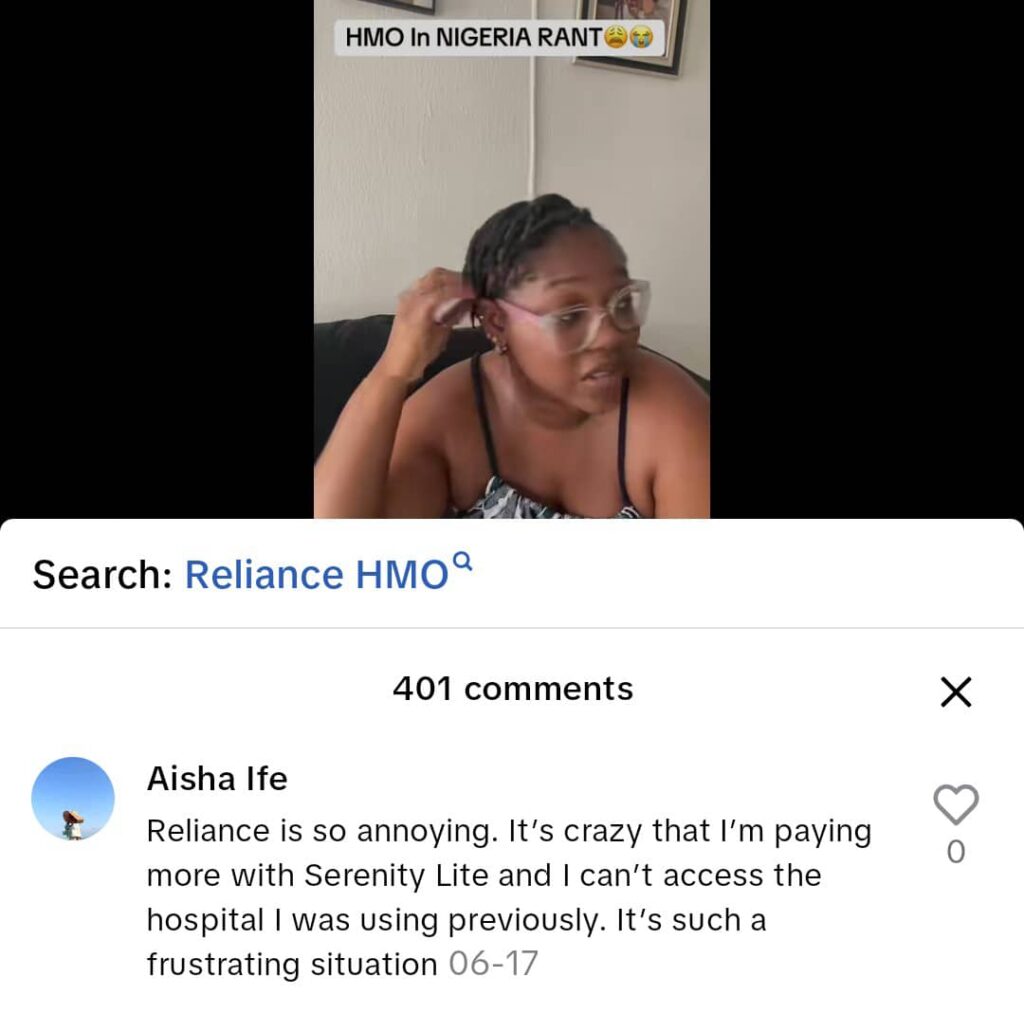
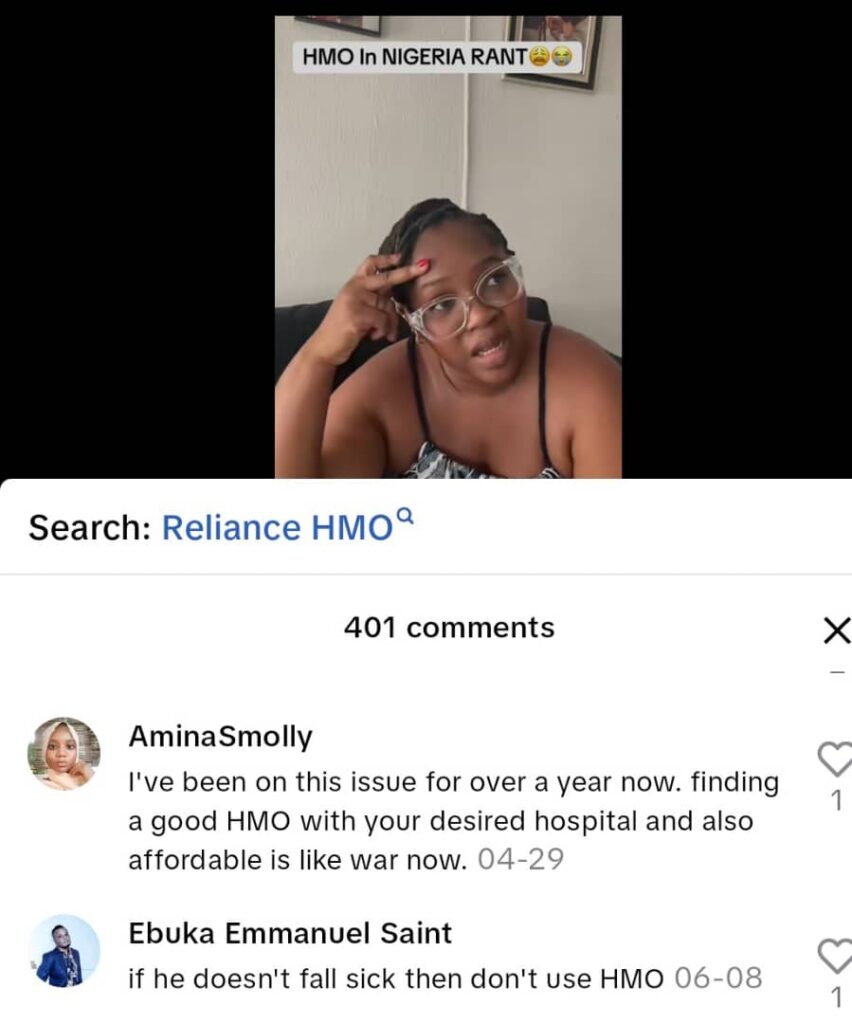
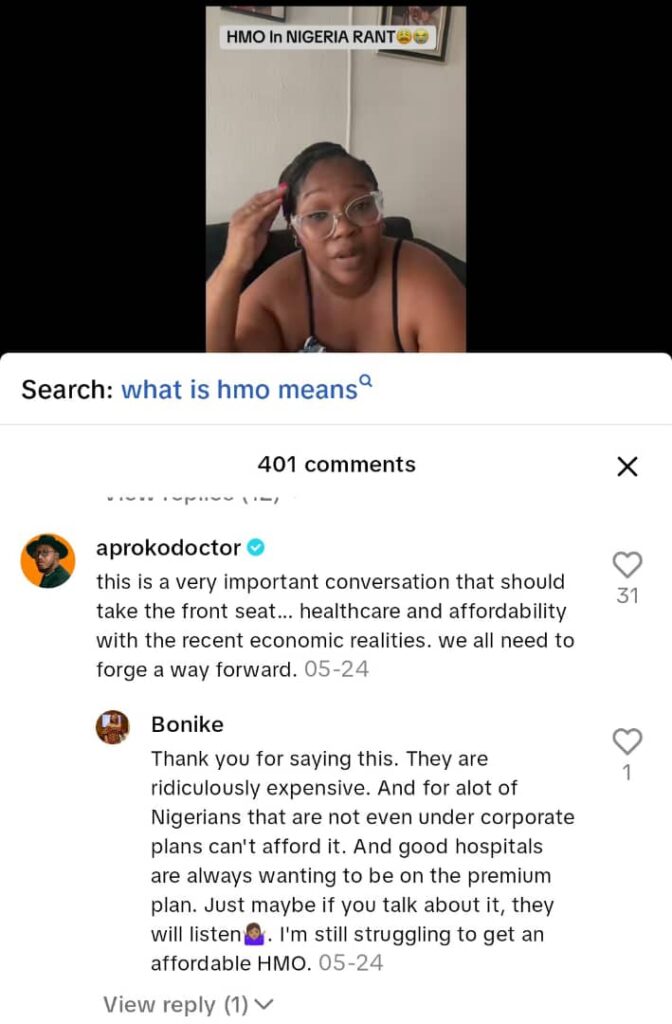
    The true scale of Nigeria’s health insurance affordability problem became starkly visible in a viral TikTok video in April 2025.  The creator, Bonike, a stay-at-home mother, shared her frustration on TikTok after her HMO provider eliminated retail plans and dramatically increased prices. Her options were either a ₦395,000 quarterly plan that covered her preferred hospitals or a ₦90,000 plan that offered limited coverage. 

    Her video resonated with a lot of Nigerians facing the same struggle. This frustration is understandable when you consider that only 19% of adult Nigerians have health insurance coverage, according to a recent NOIPolls survey.

    @aprokodoctor, Nigeria’s leading health influencer, wrote: “This is a very important conversation that should take the front seat… healthcare and affordability with the recent economic realities. We all need to forge a way forward.”

    Sisi Yemmie, one of Nigeria’s most popular food and lifestyle creators, added: “I have been trying to get HMO for my family, but I do not like the stress.” 

    @JS Official NG: “I’m going through the same thing. The percentage increase is over the roof!”

    @Aisha Life: “Reliance is so annoying. It’s crazy that I’m paying more with Serenity Lite and I can’t access the hospital I was using previously. It’s such a frustrating situation”

    @Amina Smolly: “I’ve been on this issue for over a year now. Finding a good HMO with your desired hospital and also affordable is like war”

    These reactions highlight that rigid payment structures, restricted hospital networks, and long waiting periods make health insurance in Nigeria feel inaccessible for many families.

    Common Barriers in HMO Plans in Nigeria 

    Several key issues contribute to high HMO costs in Nigeria:

    • Inflexible Payment Structures: Traditional providers often require annual lump-sum payments exceeding ₦500,000, a model designed for corporate clients that excludes individual families.
    • Limited Hospital Networks: Affordable plans frequently exclude preferred hospitals, forcing people to choose between cost savings and quality care.
    • Extended Waiting Periods: Some plans impose 14-30-day waiting periods before benefits activate, leaving families vulnerable during critical early coverage weeks.
    • Complex Plan Structures: Insurance products designed for corporate purchasing prove difficult for individuals to understand and navigate.

    How MyCoverGenius (powered by Bastion, Hygeia and AXA Mansard)is Making Affordable Healthcare in Nigeria a Reality 

    Recognising the common challenges families face with HMO plans in Nigeria, MyCoverGenius provides practical solutions to make affordable healthcare in Nigeria more accessible. Our solutions address issues such as rigid payment structures, limited hospital access, waiting periods, and complex plan options. Families can choose from a variety of plans tailored to different needs.

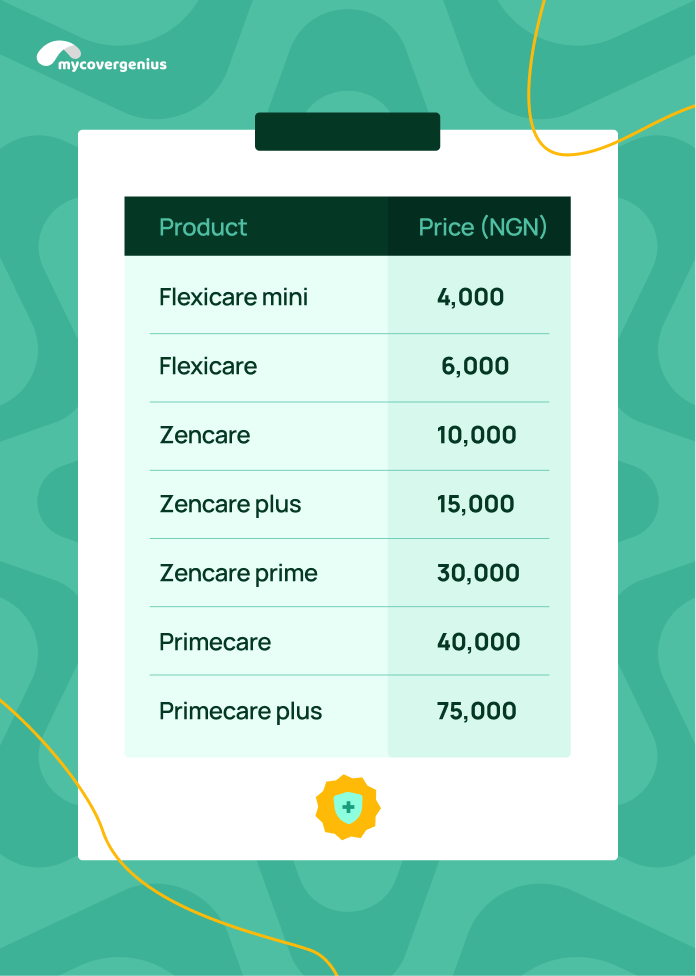
    Cheap health insurance plans HMO by MyCoverGenius with comprehensive benefits

    These structured options enable families to choose plans that suit their specific circumstances, offering flexible payment options, immediate benefit activation, and access to preferred hospitals, thereby directly addressing the barriers that make health insurance in Nigeria feel out of reach.

    The Future of HMO Costs in Nigeria  

    The conversation sparked by Bonike’s TikTok post shows that this is not an isolated frustration but a systemic issue affecting families across the country. Features such as flexible payments, immediate coverage, and patient-focused hospital networks prove that accessible insurance is possible without compromising care.

    Bonike’s struggle reflects the reality that many Nigerian families face daily. Understanding her frustration, we’ve invited her to our MyCoverGenius office to explore our health insurance plans that could work better for her family’s needs and budget.

    However, individual solutions alone aren’t enough. Real change will require new rules for clearer pricing, government support for families who can’t afford coverage, and hospitals finding more affordable ways to deliver quality care, so that health insurance becomes something every Nigerian family can actually afford.

  • How to Contact Our Customer Support Team

    Contact Our Customer Support Team

    Need help? Our support team is just a tap away. Here’s how to reach us:

    1. Log in to your dashboard and tap the menu icon (three horizontal lines) on the left side of your screen.
    2. Select “More”.
    3. Tap “Support” to view your support options.
    4. You can either:

    We’re here to help with anything you need.

  • How to Speak to a Doctor

    Speak to a Doctor

    Need to talk to a doctor? It’s quick and easy. Just follow these steps:

    1. Log in to your dashboard and tap the menu icon (three horizontal lines) on the left side of your screen.
    2. Select “Plans” and choose your active health plan.
    3. Tap “Access Care”, then select “Chat a Doctor” at the top of the screen.
    4. Copy your HMO ID number — you’ll need it to connect with a medical practitioner.
    5. Choose your preferred option:
      • Chat
      • Voice Call
      • Video Call
  • How to Find and Visit a Hospital Near You

    Find and Visit a Hospital Near You

    Locating a nearby hospital can be tricky, but we’ve made it easy. Just follow these steps:

    1. Log in to your dashboard and tap the menu icon (three horizontal lines) on the left side of your screen.
    2. Select “Plans” and choose your active health plan.
    3. Tap “Access Care”, then select “Visit Hospital” at the top of the screen.
    4. Browse through the list of available providers — this includes hospitals, eye centres, pharmacies, dental clinics, etc.
    5. You can also use the Search bar to find a provider by name or location.
    6. If the hospital isn’t listed under your plan, please do not visit — it’s not covered.
    7. Tap “Visit” on the hospital of your choice, then choose:
      • Visit Hospital – if you’re ready to go now
      • Schedule Visit – if you want a reminder to visit later (note: this is just a reminder, not an appointment)
    8. You’ll be directed to a map to help you locate the hospital.
    9. Once you arrive, go back to your dashboard and tap “I’m at the hospital” at the top of your screen. This alerts our support team in case you need help.

    If you face any issues or delays while at the hospital, use the complaint options in the app to report it.

  • How to Make a Claim

    To make claims 

    You can post-inspect when you have a claim.

    • Log in to your dashboard and click on claims from the Nav bar menu
    • Click on “Make claim” at the top right side of the page
    • View all claimable products and select the plan you want to claim on. 
    • Proceed to make your claim by providing asset details and conducting a post-loss inspection. 
    • Post-loss inspection requires a clear view of the damaged part. 
    • Once your claim is submitted, you will receive an email notification of next step for your claim. 
  • How to conduct a pre-inspection of your gadgets and vehicles

    Pre-Inspection of your asset

    1. During activation, you can choose to inspect immediately or do it later
      • To inspect immediately, scan the QR code if you are on your desktop to proceed with the inspection
      • Otherwise (i.e, if you are on your phone), follow the guide on how to inspect and complete the inspection process. 
    2. If you decide to do it later, on logging into your dashboard, click on Plans from the Nav bar Menu
    3. Select the plan by clicking View
    4. On the plan details page, scroll right to the vehicle/gadget covered
    5. On the active tab, select the vehicle/gadget that needs to be inspected
    6. Click on inspect gadget/vehicle
      • If you are on your desktop, scan the QR code to proceed with the inspection
      • Otherwise (i.e, if you are on your phone), proceed with the guide shown on how to inspect and complete the inspection process.
    7. A policy certificate will be generated after a pre-inspection is completed. 
  • How to change your plan cover period

    Change your plan cover period

    1. Log in to your dashboard and click on Plans from the Nav bar Menu
    2. Select the plan by clicking View
    3. At the top right side of the screen, tap More
    4. Click on Edit plan
    5. On the left side of the Nav bar, tap on Change cover period
    6. Choose the cover period you would love to change to.  
    7. You will be charged for the new cover period upon your next renewal. 
    8. Congratulations. You have changed your plan cover period
  • How to buy a staff dependant slot

    Buy a staff dependant slot

    1. Log in to your dashboard and click on Plan from the navigation bar Menu
    2. Select the plan by clicking View
    3. Navigate to the staff covered and select the active staff policy
    4. Swipe to the dependant tab and tap New dependant slot
    5. Add the number of dependants you wish to assign to the staff
    6. Proceed to make payment
    7. Congratulations. You have successfully bought a dependant slot
    8. You can proceed to add and activate the staff dependant
  • How to assign permissions to staff members

    Create roles and assign permissions

    To create roles and assign permissions to your business Admin:  

    1. Login to your dashboard and click on settings from the Nav bar Menu
    2. At the top of the screen, tap on Team
    3. Tap on Roles to create a specific function 
    4. Tap on Invite team members to invite the admin to the role created
    5. The admin receives an email and accepts the invite
    6. Admin can now manage plans based on the number of permissions granted.
  • How to deactivate a policyholder

    Deactivate a policyholder from a plan

    To deactivate a staff from a plan: 

    1. Login to your dashboard and click on Plans from the Nav bar Menu
    2. Select the plan by clicking View
    3. On the plan details page, scroll left to Staff covered
    4. Select the staff by checking the box in the top left corner
    5. Tap Deactivate policy
    6. Read through the Terms and Conditions and continue 
    7. Choose Instant or pending deactivation
    8. Proceed to deactivate the staff policy
    9. Check your plan details for the updated premium to be paid upon the next renewal.
  • How to renew your plan

    Renewals

    You can renew ahead of time or renew after the plan has expired. 

    To renew ahead:

    1. For auto renewal: Funding your wallet or adding a debit card to your account will automatically renew your plan before expiration
    2. For manual renewal, log in to your dashboard and click on plan from the navigation bar Menu
    3. Select the plan by clicking View
    4. On the plan details page, Tap renew ahead to proceed
    5. The plan info and premium will be generated
    6. Choose your preferred payment method to make payment
    7. Congratulations. You have logged in your plan for renewal

    To renew after the plan has expired: 

    1. Log in to your dashboard and click on plan from the navigation bar Menu
    2. Select the expired plan by clicking View
    3. On the plan details page, tap Renew expired plan to proceed
    4. The plan info and premium will be generated
    5. Choose your preferred payment method to make payment
    6. Congratulations. Your plan has been renewed.
  • How to remove a staff policy

    Remove staff

    To remove a staff from your business dashboard: 

    1. Login to your dashboard and click on staff from the Nav bar Menu
    2. Select the staff and click View
    3. On the left side of the screen, tap on Remove staff
    4. Read through the Terms and Conditions and continue
    5. Input the password you used to create your account
    6. The staff will be successfully removed from your business account and won’t appear on the list of staff. They will also lose access to all plan benefits. 
  • How to change your plan

    To change your plan

    1. Log in to your dashboard and click on Plans from the Nav bar Menu
    2. Select the plan by clicking View
    3. At the top right side of the screen, tap More
    4. Click on Edit plan
    5. On the left side of the Nav bar, tap on Change Plan
    6. Choose the plan you would love to change to. 
    7. Proceed to complete the payment. 
    8. Congratulations. You have a new plan which will take effect immediately
  • How to activate a policy

    Activate an added policy

    To activate a policy:

    1. Log in to your dashboard and click on Plans from the Nav bar Menu
    2. Select the plan by clicking View
    3. On the plan details page, scroll left to Staff/vehicle/gadget covered
    4. On the pending policy tab, tap on the awaiting policy you wish to complete its registration
    5. To activate a pending policy, you need to provide and upload
      • For health: the staff DOB and a clear image picture
      • For auto: Vehicle license, proof of ownership document, and conduct a pre-inspection. 
      • For gadget: Purchase receipt, a full snapshot of the gadget, proof of ownership document and conduct a pre-inspection. 
      • For travel: International Passport and other staff information.
    6. Policy certificate will be generated once activation is completed.